
How to Create a Service Event in CountTrue
Service events tell CountTrue what is being counted, when counting should begin, and which layout and counting settings to use. Weekly service events are created automatically after the first event has been set up.
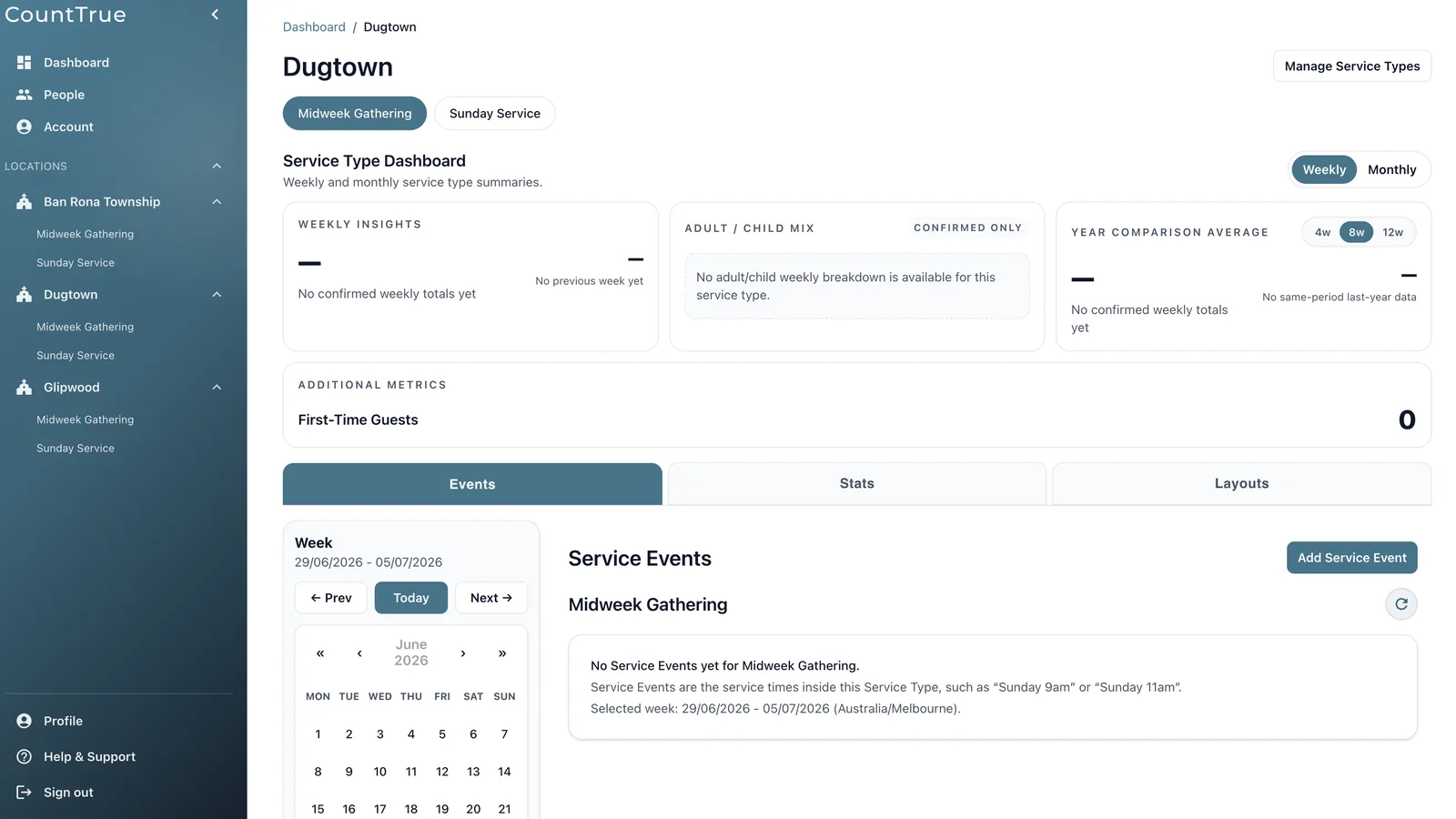
Open the service type
From the location dashboard:
- Select the relevant location.
- Choose the service type, such as Sunday Service.
- Open the Events tab.
- Select Add Service Event.
Make sure you are working within the correct location and service type before creating the event.
Name and schedule the event
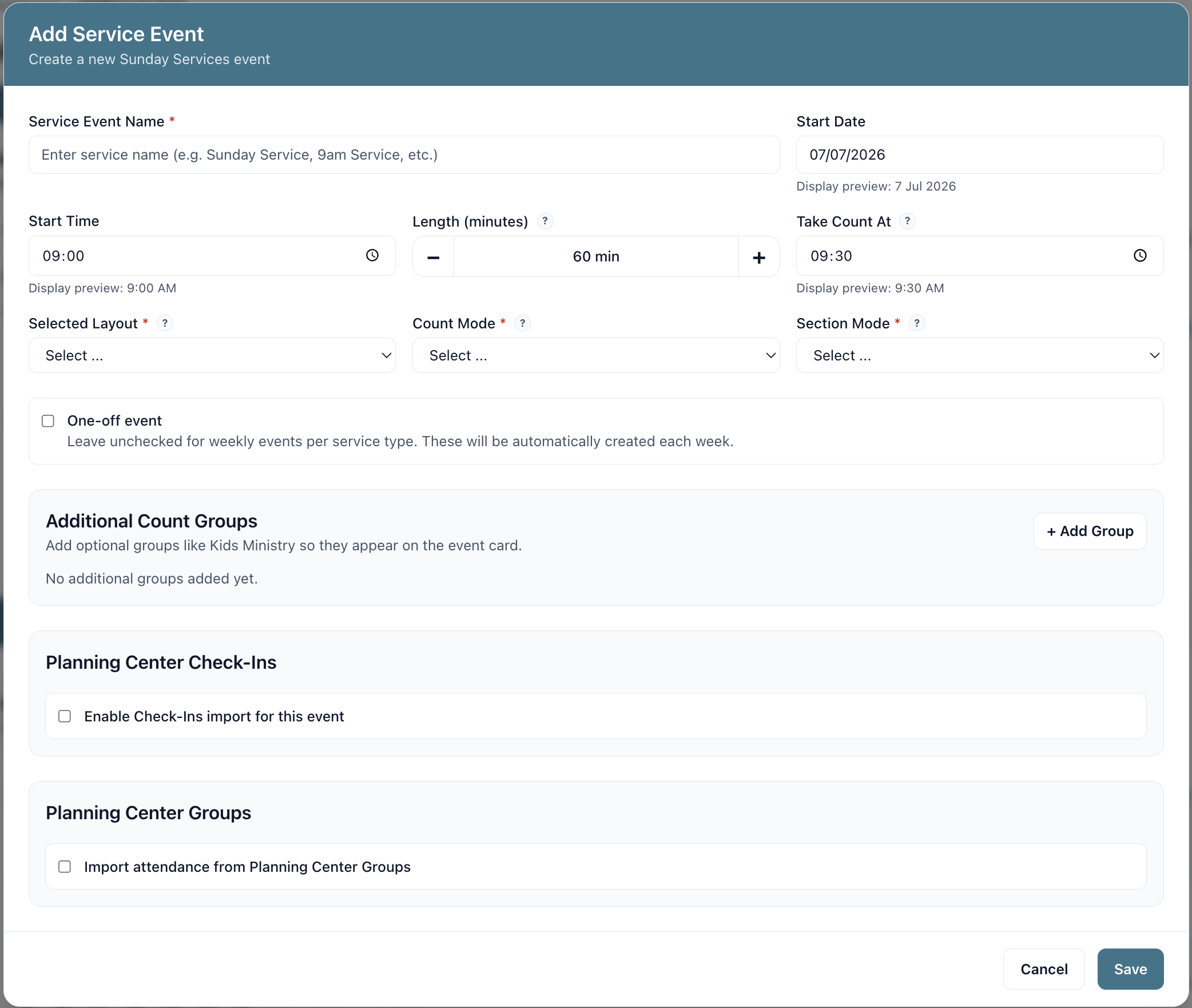
Enter the basic event details:
- Service Event Name: Use a clear name such as 9am Service or Sunday Evening Service.
- Start Date: Select the date of the first event.
- Start Time: Enter the scheduled starting time.
- Length: Set the expected duration of the service. Counters can submit counts until 15 minutes after the estimated end time.
- Take Count At: Choose when counting should begin during the service.
The event name should distinguish this service time from any other events within the same service type.
Choose the layout
Select the layout that counters will use.
Depending on how the layout was created, counters may:
- count using a seating layout;
- count using section-based tally counters ("Section Tallies"); or
- use one simple tally counter.
Layouts must be created before they can be selected for a service event. If you need to set one up first, see How to Create a Seating Layout for Church Attendance.
Choose what will be counted
Under Count Mode, select:
- People to record one overall attendance total; or
- Adults / Kids to record separate adult and child totals.
Use Adults / Kids when that distinction is useful for your church's reporting. Otherwise, People provides the simplest counting experience.
Choose how sections are assigned
Section mode is used for when you have a team of people counting, and determines how the totals are aggregated.
- Count all sections: Every counter counts every section. The final total is the average of the confirmed submitted counts.
- Count allocated sections: Counters are assigned particular sections to count. The final total is the sum of the confirmed submitted counts for each allocated section. Any section that is counted by more than one counter will be averaged between the confirmed counts.
Allocated sections are useful when a larger venue is divided among several counters. Note that CountTrue does not currently have ability to allocate sections to specific counters - who counts which section is worked out by the counting team.
For seating layouts, you can also enable Tally Counts for Seating Sections. This lets counters switch from tapping individual seats to using a tally counter. Tally counting may be faster, but it is usually less precise.
Choose whether it is weekly or one-off
Leave One-off event unchecked for a normal weekly service.
CountTrue will use this event as the recurring service time and automatically create the next event each week.
Select One-off event only when the event should not repeat, such as a conference, special service or holiday gathering.
Add any additional count groups
Use Additional Count Groups for attendance that should appear alongside the main service count, such as:
- Kids Ministry
- Creche
- Youth
- Overflow Room
Additional Count Groups are for adding attendance that is counted separately from the main service. For example, if the kids church uses a check-ins system, your counters may not need to do a separate manual count. Additional Count Groups are where you can add those numbers to be tracked alongside the main service attendance.
Select Add Group, enter the group name, and repeat for any other groups you need.
Additional groups are entered separately from the attendance recorded through the selected layout.
If you use Planning Center Check-Ins, you may not need to add additional count groups, as those integrations can automatically import the attendance from those systems.
Connect Planning Center attendance where needed
If you have a paid account and have your Planning Center account connected, you may also see options for Planning Center Check-Ins and Planning Center Groups.
For more context on how Planning Center fits alongside CountTrue, see our guide on church attendance counting with Planning Center.
Planning Center Check-Ins
Enable Check-Ins import and select the appropriate Planning Center event. CountTrue will match the service to the corresponding event time and allow Check-Ins attendance to be imported.
Planning Center Groups
Enable Groups import and choose the Planning Center group whose attendance should be associated with the event.
These sections only appear when the relevant Planning Center integration is available for your account.
Save the event
Review the event details and select Save.
The new event will appear under the selected service type. For a weekly event, CountTrue will automatically create future events using the same settings.
What happens next?
Once the event has been created, team leaders can open it from their Events page, share the event's counting code with counters, monitor submitted counts and confirm the final attendance total.
For the review and confirmation workflow, see Getting Started as a Count Leader in CountTrue.
Need a clearer counting workflow?
Use the CountTrue guides to keep your service setup, layout, and counting process easy to repeat each week.